Friday, 13 July 2012

most beautiful themes for windows xp


Do you know what I hate most about Windows XP? It's look. It's painful combination of blue and green. So one of the first thing I do after every Windows install is patch the Uxtheme file so that I can apply a visual style of my choice. I hope you are not using the default theme, are you?
The following is a list of some of the choicest visual styles that can give Windows XP a total makeover. Pick any!
Note: This list contains only shell styles that can be applied directly by patching Uxtheme or through StyleXP. No Window Blinds skins here.


Also see
Another 25 beautiful Windows XP themes (A fresh new collection)
25 beautiful Windows Vista themes (For Windows Vista users)

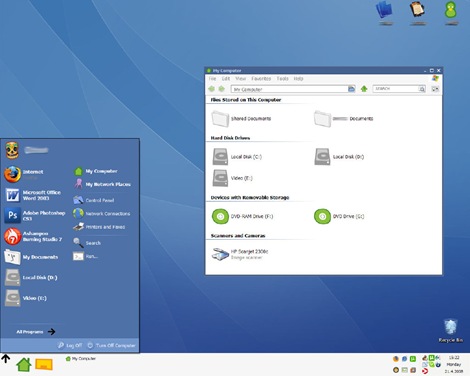
Watercolor Arrow - This theme looks so cool with a light colored taskbar, blue menu and funny hand-drawn type icons.
Watercolor_Arrow_by_pigmonkey2
download_button


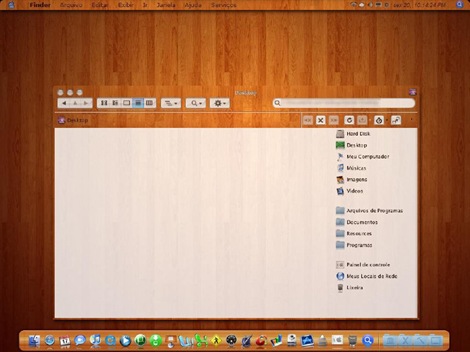
Wood Visual Styles - Transforms everything to wood! This theme is tested in Windows XP SP2. A few people reported problems with SP3. (This theme is no longer available. Sorry.)
Wood_Visual_Styles_for_WinXP_by_SaaanDp


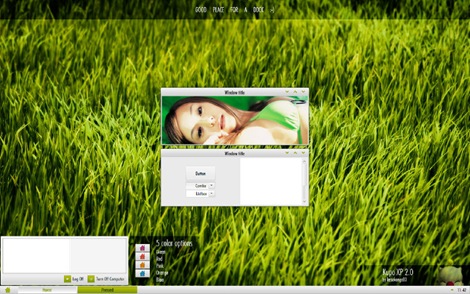
Kupo XP 2.0 - A very minimalistic design available in 5 colors.
Kupo_XP_2_0_by_lassekongo83
 download_button


Luder -  Another minimalistic theme with a clean green look.
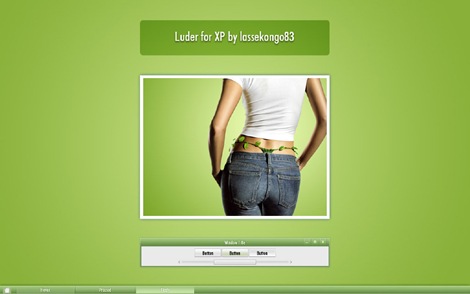
Luder_for_XP_by_lassekongo83
 download_button


Aurum VS 1.1 - A bit of Vista's Aurora look.
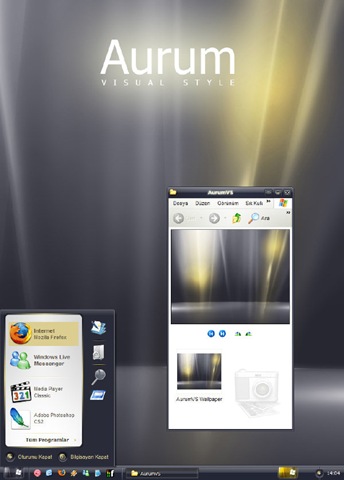
Aurum_VS_1_1_by_GeorgeHarrison
 download_button


Delta VS - A silver gray theme with mild colors.
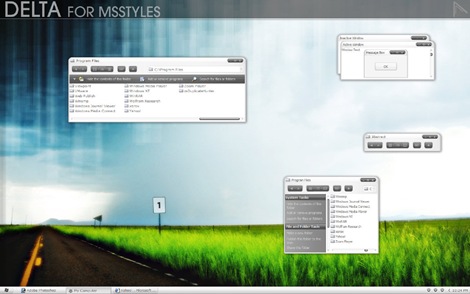
Delta_VS_by_OmART
 download_button


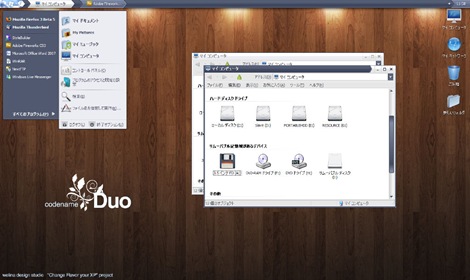
DUO - A mixture of Vista and Mac.

DUO_by_GensouRay
  download_button


Ubuntu XP - This is the closest Windows XP can get to Ubuntu! Brilliantly done.
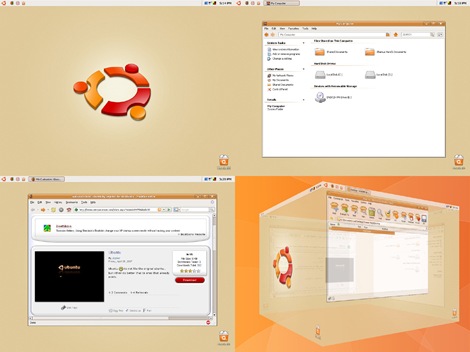
Ubuntu_XP_by_ShamusHand
  download_button


Simplebox - This time it's Fedora. (This theme is no longer available)

Simplebox_by_JoJoMaMa


Clearlooks Gummy - This theme pack gives a "Gnome" look to Windows XP. Available in 14 different colors!
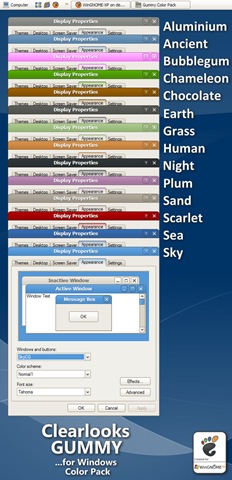
Clearlooks_Gummy___Colors_by_WinGNOME_XP
  download_button


Cadoo Visual Style 1.0 - A smooth whitish theme that gives a great contrast to any icon set.
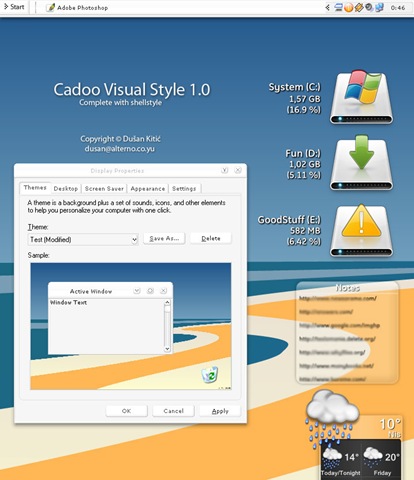
Cadoo_Visual_Style_1_0_by_icube001

  download_button


animus -  A Mac like blue and white theme that works great with Mac icon set.
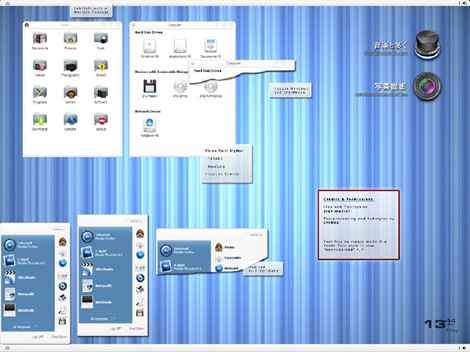
animus_by_chiwou
download_button


OSX Tiger V - Give Windows the Mac look. Very nicely done.
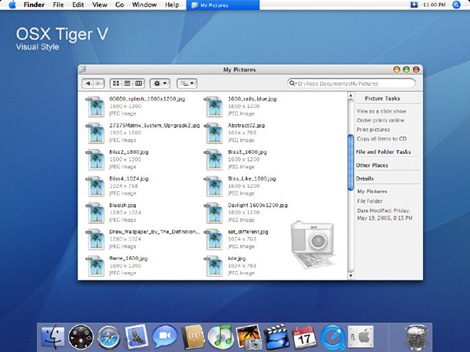
OSX_Tiger_V_visual_style_by_dobee
download_button


Leopard X - Another Mac theme with a slightly darker look.
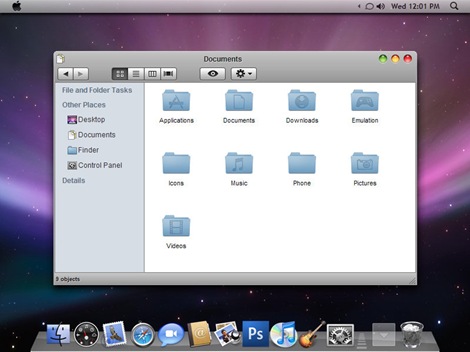
Leopard_X_by_kspudw
download_button


VistaPerfection X4 - One of the best looking Vista theme for Windows XP.
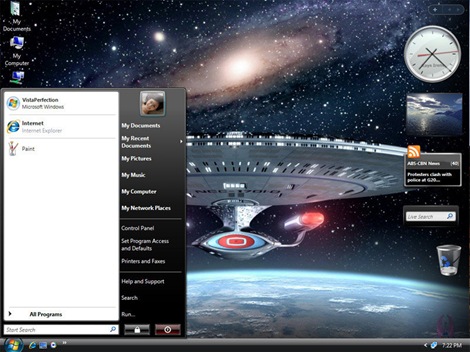
VistaPerfection_X4_Msstyles_by_kayeirene
download_button


Dream LH 1.0 - Another theme with the Vista look, but darkish and black  explorer window and task panel.
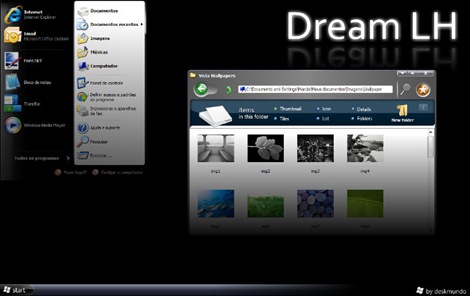
Dream_LH_1_0_by_deskmundo
download_button


EX2008 Visual Style - A darkish theme with a tinge of green. Very minimalistic.
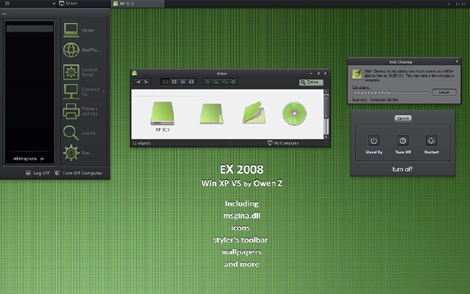
EX2008_Visual_Style_by_alocal
download_button


SlanXP 2.0 - Another dark theme for Windows XP.
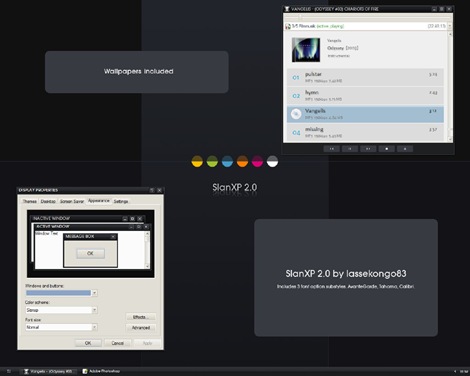
SlanXP_2_0_by_lassekongo83
download_button


GAIA - A very simple yet elegant theme with mild colors.
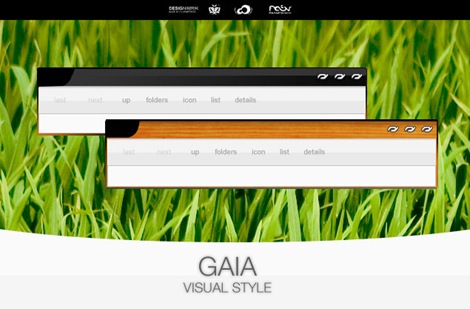
GAIA_VS_by_novoo
download_button


Greenius.VS - Another beautiful green theme. (Green seems to be the preferred color for designers)
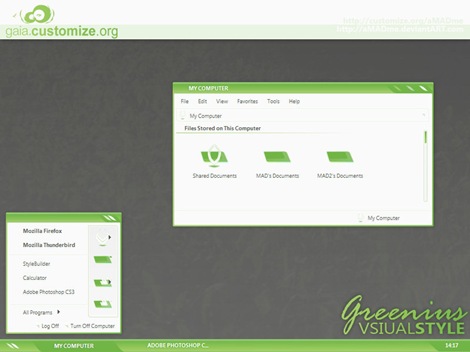
Greenius_VS_for_GAIA_1_1_by_aMADme
download_button

P.S: This is how to install the themes:

1. Download and install Uxtheme patcher. During install a message will be displayed that important Windows file are being replaced and will ask you to insert the windows CD to fix it. Just ignore and click "continue"

2. Download the theme pack and copy the folder containing .msstyles and shellstyle.dll (this is inside another folder) to C:\WINDOWS\Resources\Themes\

3. After this is done, right-click on desktop and click Properties. Now click on the Appearance tab. UnderWindows and Buttons you will find the list of all the themes you installed. Select one from the list and click Apply.
Sometimes, the downloaded pack contains additional utilites like Styler and Rocketdock etc to bring other changes to Windows. It's up to you whether you want to install the additional stuff. You can visit the original page of the theme author for more instruction on how to use those.

Thursday, 12 July 2012

MAC OS X LION TRANSFORMATION PACK FOR WINDOWS


Apple Mac Lion is the latest OS from Apple .It provide beautiful desktop,inspired features on the iPad, screen applications, bars hidden self, Mission Control, among others.This transformation pack will change Windows XP/Vista/7 to a new Apple Mac Lion OS.Many features ,Graphics,Style are improved.


The visual changes that the program applies are extraordinary, and the user will feel like you’re working with a Mac OS X.

Installation is very easy.Just click on exe file.After installation restart your OS.


Click on below button to download for windows xp

Mac OS X Lion theme for Windows 7 | 

Install

1.Two options available
a,Quick Installation
b,Custom

2.You can select Features to install
a,Disable etc features if you need.You will get faster start up and speed.Enable:Slow start up and slow speed.But better Appearance.

3.Restart Twice or Thrice .After first reboot you may have some problem [Start menu-You may get old Windows XP start menu and Task bar]. Restart again and again until you get mac menu.
Features 

1.Transparent Windows (Graphics card and Good Hardware configuration for full effect )
2.Icons
3.Windows
4.Dock
5.Finder bar
6.Finger
7.Mac search
8.My board
9.My space
10.Left sider
11.Rocket dock
12.UberIcon
13.Winexpose
14.Yzshadow
15.Winroll
16.Mac os LION sounds
17.Application sounds
18.Welcome screen
19.Wallpapers
20.Control panel
21.Scroll bars

Screenshots 
[credit- sibin xavier,7chip]

1.Desktop

Apple mac os LION transformation pack for windows-Desktop-Stylish
-We can disable RocketDock features
-Right click on the triangular icon on Dock/click on Dock settings

2.My computer

LION transformation pack for windows-My computer
-New icon set
-New Side bar
-Animation effects (Zooming effect when we open folders)

3.RocketDock-Control Panel

Control panel windows on Apple mac os LION
-Easy access
-Control panel on Dock

4.Transparent Windows and Menus

LION transformation pack for windows -Transparent
5.Dock -Drive

Rocket DOck-properties
-Select Hard Disk Drive/Folders directly from Dock

Download Mac OS X LION for Windows XP

Wednesday, 11 July 2012

Password Protect folders in Windows without any Software

Most of us have private data. Not all of us have a private computer to keep that data. So, we just end up with other people viewing that data. Although password protecting software do work, it is almost useless to hide private data with these software(because we are always questioned as to what it is that we are hiding with the help of these software).
Hide Folders without any SoftwareHidden folders do not work as they can be easily searched with Windows Search. So, we need an alternative way to create hidden password protected folders which only we can access. And that is exactly what we will learn in this post.
With this trick, you can create a secure password protected folder in Windows which no one except you can access. To use this trick, follow the instructions given below:-
1.  Open Notepad.
2.  Copy and paste the exact code given below:-

cls
@ECHO OFF
if EXIST "Control Panel.{21EC2020-3AEA-1069-A2DD-08002B30309D}" goto UNLOCK
if NOT EXIST MyFolder goto MDMyFolder
:CONFIRM
echo Are you sure to lock this folder? (Y/N)
set/p "cho=>"
if %cho%==Y goto LOCK
if %cho%==y goto LOCK
if %cho%==n goto END
if %cho%==N goto END
echo Invalid choice.
goto CONFIRM
:LOCK
ren MyFolder "Control Panel.{21EC2020-3AEA-1069-A2DD-08002B30309D}"
attrib +h +s "Control Panel.{21EC2020-3AEA-1069-A2DD-08002B30309D}"
echo Folder locked
goto End
:UNLOCK
echo Enter password to Unlock Your Secure Folder
set/p "pass=>"
if NOT %pass%== www.arjunckm.blogspot.com goto FAIL
attrib -h -s "Control Panel.{21EC2020-3AEA-1069-A2DD-08002B30309D}"
ren "Control Panel.{21EC2020-3AEA-1069-A2DD-08002B30309D}" MyFolder
echo Folder Unlocked successfully
goto End
:FAIL
echo Invalid password
goto end
:MDMyFolder
md MyFolder
echo MyFolder created successfully
goto End
:End

3.  Click on the File Menu. Click on Save As.
4.  Select All Types in the Save As Type dropdown menu. Save the file as *.bat or Locker.bat.

After creating the file, double click on the Saved file. A new folder will be created. Enter your data in the folder. Again, double click on the batch file. Type Y and press Enter. The folder will be hidden from view.

To re-view your folder, double click on the saved batch file. Enter password as "www.arjunckm.blogspot.com" without quotes and press Enter key. This is also the default password. Your folder will be visible again.

To change the default password, edit the part of the code given in blue and enter your own password.

The overall usability of this trick can be improved by deleting the batch file after hiding your folder and re-creating it when you wish to access your folder again.

If you face any problem using this trick, you can write a comment and I will do my best to help you.

Note: This works on Windows 7, Windows XP and Vista. First try this on useless data to be sure and then only hide your personal data.